Trader Settings
Trader Settings let you personalize how FairTicks behaves while you trade. You can configure protection behavior near breach, dynamic contract presets, keyboard shortcut modes, and near-breach alert preferences.
Trader Settings are personal preferences. They can make the trading workspace safer, faster, or more comfortable, but they never disable account rules, breach rules, payout rules, or risk validation.
See Trader Settings in practice
Trader Settings is divided into four tabs: Protection, Contracts, Shortcuts, and Alerts. The screenshots below show the three most configuration-heavy areas.
Trader Settings at a glance
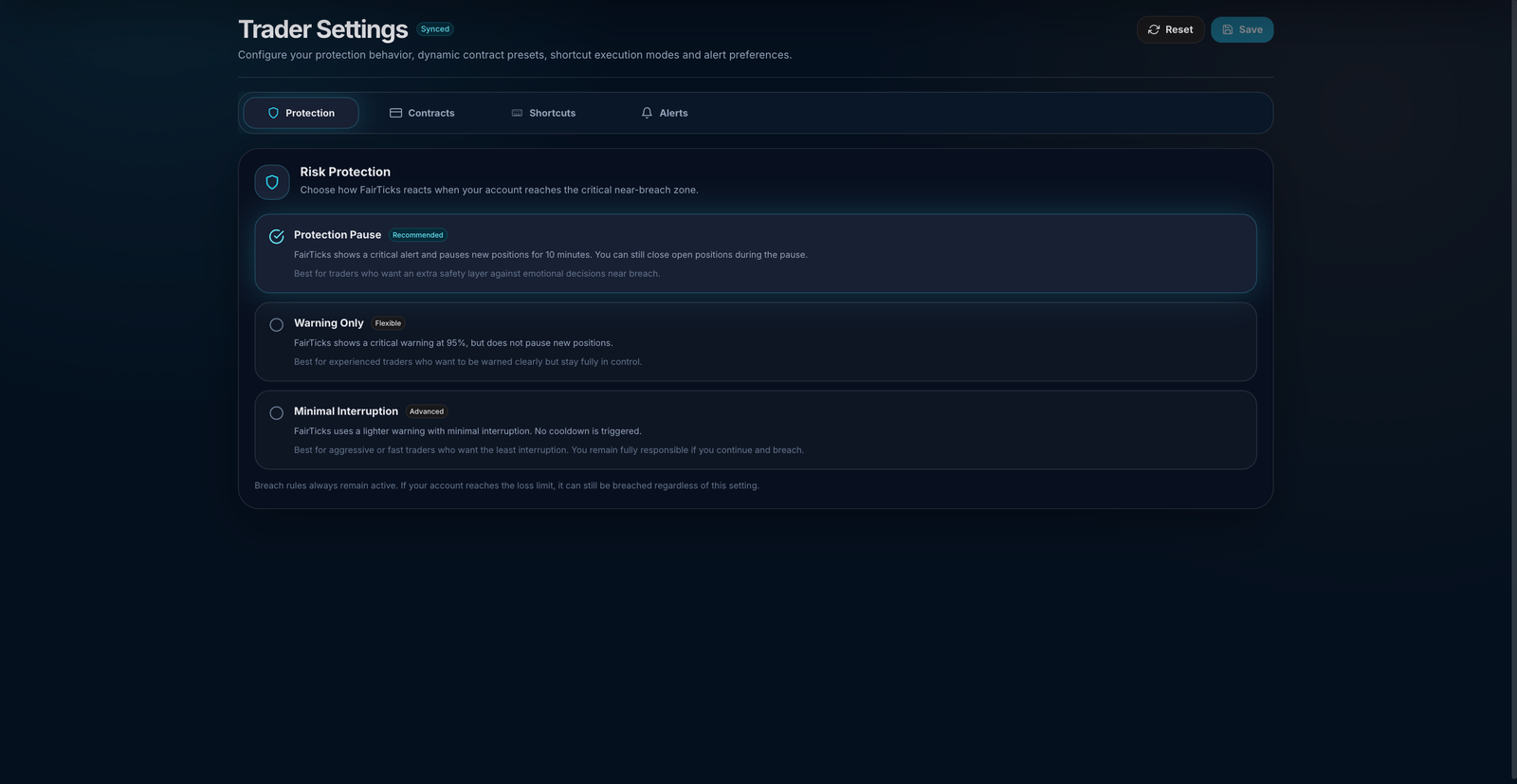
Choose whether FairTicks pauses new exposure, warns only, or minimizes interruption near a Critical risk state.
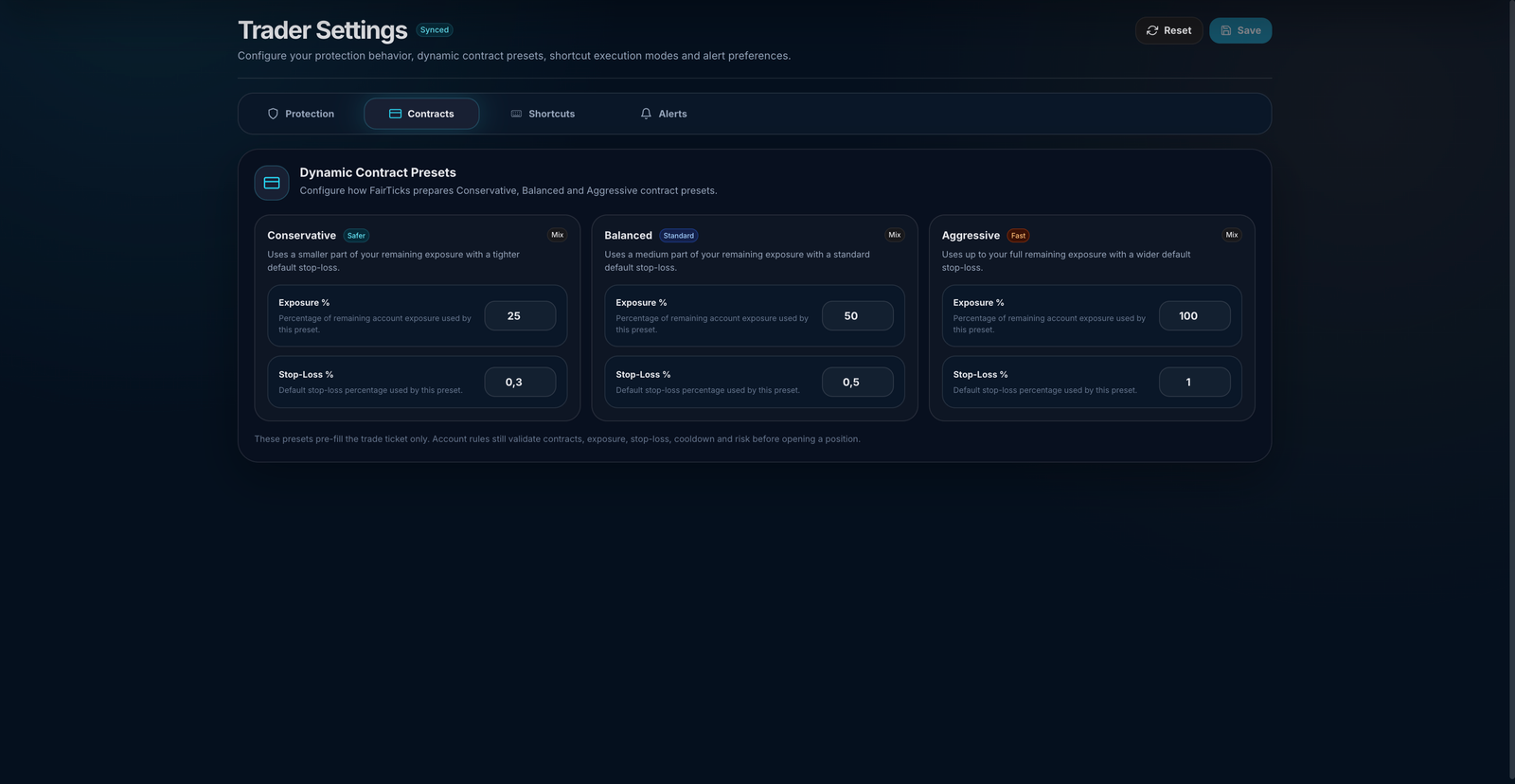
Define how much remaining exposure and which default Stop Loss percentage each preset prepares.
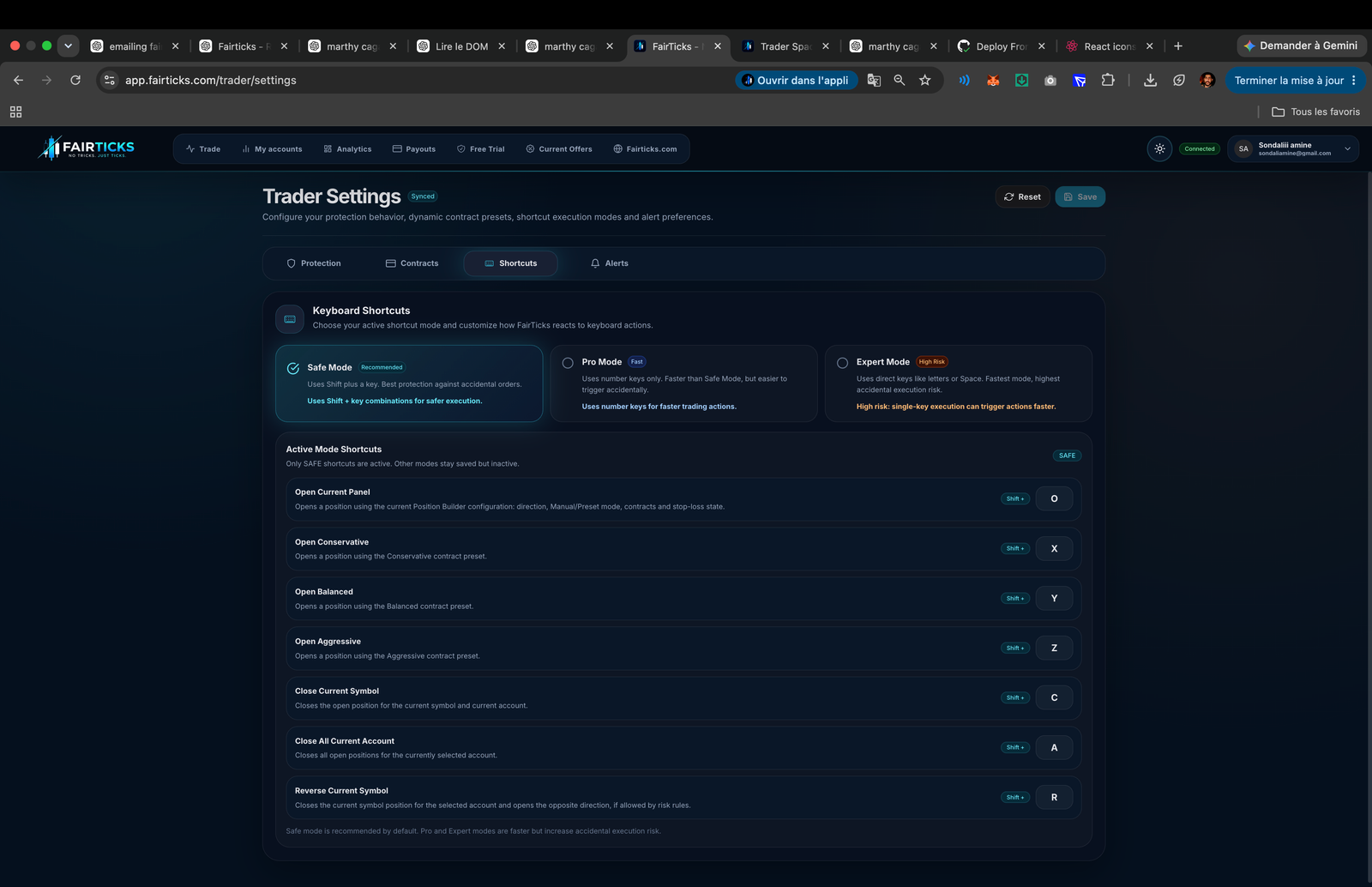
Choose a safer or faster shortcut style and review which keys trigger each available trading action.
Control how FairTicks notifies you when the account approaches a critical risk threshold.
Changes become persistent only after saving successfully.
Reset restores default personal settings without resetting the trading account or its history.
Trader Settings in one sentence
Trader Settings control how your interface behaves; they do not change the official rules of your account.
Where to find Trader Settings
You can open Trader Settings from the trader dashboard navigation. The page is divided into four main sections:
| Section | What it controls |
|---|---|
| Protection | How FairTicks reacts when your account reaches the Critical near-breach zone. |
| Contracts | Your Conservative, Balanced, and Aggressive dynamic contract presets. |
| Shortcuts | Your active keyboard shortcut mode and shortcut keys. |
| Alerts | Near-breach sound alerts and browser notifications. |
How FairTicks uses your settings
Settings influence the interface and the values prepared before an action. The final action still goes through normal FairTicks validation.
| Step | What happens |
|---|---|
| 1 | You choose and save a personal setting. |
| 2 | The trading interface uses that preference when preparing alerts, presets, or shortcuts. |
| 3 | You trigger the related action. |
| 4 | FairTicks validates account status, market state, exposure, contracts, Stop Loss, cooldown, and risk. |
| 5 | The action is executed if all required checks pass, or rejected with the official reason. |
A preset or shortcut can make an action faster to prepare, but it cannot force FairTicks to accept an invalid trade.
Save and reset behavior
Changes are not applied permanently until you click Save changes. If the page shows Unsaved changes, your current draft is not yet saved.
| Action | What it does |
|---|---|
| Save changes | Saves your current settings and applies them to your trading experience. |
| Reset | Restores the FairTicks default settings for protection, contracts, shortcuts, and alerts. |
| Synced | Your displayed settings match the saved settings. |
| Unsaved changes | You changed something locally, but it has not been saved yet. |
Only saved settings are used after refresh or when returning to the platform. If you change settings but do not save them, they may not be kept.
Default settings
If you never changed Trader Settings, FairTicks automatically uses the default configuration. You can return to these defaults at any time by using the Reset button.
| Setting area | Default value |
|---|---|
| Protection mode | Protection Pause |
| Contract presets | Conservative 25% / 0.3%, Balanced 50% / 0.5%, Aggressive 100% / 1% |
| Shortcut mode | Safe Mode |
| Near-breach sound alerts | Enabled |
| Browser notifications | Disabled |
Section 1 — Protection
Protection controls what happens when your account reaches the Critical near-breach zone. Critical near-breach means the account is very close to a hard risk limit, but has not necessarily breached yet.
Protection mode does not disable breach rules. If live equity reaches a hard risk floor, the account can still breach regardless of the protection mode selected.
Protection modes
| Mode | What happens at Critical near-breach | Best for |
|---|---|---|
| Protection Pause | FairTicks shows a critical alert and pauses new positions for 10 minutes. Closing existing positions remains available. | Most traders who want an extra safety layer near breach. |
| Warning Only | FairTicks shows a critical warning, but does not pause new positions. | Experienced traders who want to be warned clearly but stay fully in control. |
| Minimal Interruption | FairTicks uses lighter warning behavior with minimal interruption. No cooldown is triggered. | Advanced or fast traders who accept the risk of continuing near breach. |
Protection Pause is recommended because it gives you time to clear your mind when your account is already very close to a breach. It blocks new exposure temporarily, but still lets you close open positions.
What Protection settings cannot do
- They cannot disable Daily Loss, Max Loss, or Trailing Drawdown.
- They cannot repair an account that already breached.
- They cannot increase your risk limits.
- They cannot guarantee that you will avoid breach.
- They cannot turn a risky trade into a valid trade.
Section 2 — Contracts
The Contracts section lets you configure three dynamic presets: Conservative, Balanced, and Aggressive.
These presets help FairTicks prepare a trade ticket faster by choosing contracts and a default stop-loss percentage for you. They are convenience tools, not rule overrides.
Default contract presets
| Preset | Default exposure | Default stop-loss | Meaning |
|---|---|---|---|
| Conservative | 25% | 0.3% | Uses a smaller part of remaining exposure with a tighter default stop-loss. |
| Balanced | 50% | 0.5% | Uses a medium part of remaining exposure with a standard default stop-loss. |
| Aggressive | 100% | 1% | Uses up to the full remaining exposure with the widest allowed default stop-loss. |
Exposure percentage
Exposure percentage means the percentage of your remaining account exposure used by the preset. It is not a percentage of your account capital.
Remaining exposure available: $1,000
Balanced preset exposure: 50%
Target exposure used by the preset: $500
Stop-loss percentage
Stop-loss percentage is the default stop-loss value used when the preset prepares the trade. FairTicks currently accepts preset stop-loss values between 0.1% and 1%.
Account model requires Stop Loss.
Balanced preset stop-loss: 0.5%
When you use the Balanced preset, FairTicks prepares the trade with that stop-loss percentage.
Accepted preset ranges
| Field | Accepted range |
|---|---|
| Exposure % | Minimum 1%, maximum 100% |
| Stop-loss % | Minimum 0.1%, maximum 1% |
Contract presets only pre-fill the trade ticket. Account rules still validate contracts, exposure, Stop Loss, cooldown, market status, and risk before opening a position.
How a dynamic preset prepares a trade
| Stage | Meaning |
|---|---|
| Remaining exposure | FairTicks reads the exposure still available on the selected account. |
| Preset percentage | The chosen preset applies its saved Conservative, Balanced, or Aggressive percentage. |
| Suggested exposure | The interface prepares a contract mix that targets the calculated exposure. |
| Default protection | The preset prepares its saved Stop Loss percentage when applicable. |
| Official validation | Contracts, exposure, market, Stop Loss, cooldown, account state, and risk rules are checked before opening. |
Section 3 — Shortcuts
Shortcuts let you trigger trading actions from the keyboard. This can make trading faster, but it also increases the risk of accidental execution if you choose a fast mode.
Safe, Pro, and Expert shortcuts can all be saved, but only the selected shortcut mode is active. Other shortcut modes remain saved but inactive.
Shortcut modes
| Mode | Shortcut style | Risk level |
|---|---|---|
| Safe Mode | Shift + one letter or number | Recommended. Best protection against accidental orders. |
| Pro Mode | Numbers only | Faster, but easier to trigger accidentally. |
| Expert Mode | Direct letters or Space | Fastest mode and highest accidental execution risk. |
Default shortcuts
| Action | Safe Mode | Pro Mode | Expert Mode |
|---|---|---|---|
| Open Current Panel | Shift + O | 0 | O |
| Open Conservative | Shift + X | 1 | X |
| Open Balanced | Shift + Y | 2 | Y |
| Open Aggressive | Shift + Z | 3 | Z |
| Close Current Symbol | Shift + C | 4 | C |
| Close All Current Account | Shift + A | 5 | Space |
| Reverse Current Symbol | Shift + R | 6 | R |
Shortcut validation rules
- Safe Mode shortcuts must use Shift plus one letter or number.
- Pro Mode shortcuts must use numbers only.
- Expert Mode shortcuts must use one letter or Space.
- Ctrl, Alt, Cmd, Command, Control, and Meta shortcuts are not allowed for trading actions.
- Duplicate shortcuts are rejected inside the same mode.
A shortcut does not bypass trading rules. If the account, position, market, exposure, Stop Loss, cooldown, or risk state blocks the action, the shortcut action can still be rejected.
Shortcuts while typing
FairTicks avoids triggering trading shortcuts while you are typing inside inputs, text areas, select fields, or editable areas. This helps reduce accidental execution while you are editing values.
How shortcut execution works
| Stage | What FairTicks does |
|---|---|
| Key press | FairTicks detects the active shortcut only when focus is not inside a typing field. |
| Mode check | The platform confirms whether Safe, Pro, or Expert Mode is active. |
| Action mapping | The saved key is matched to Open, Close, Close All, Reverse, or a contract preset action. |
| Trading validation | Account status, position state, market data, exposure, contracts, protection, cooldown, and risk are validated. |
| Execution or rejection | The action is executed only when all required rules pass. |
Pro and Expert modes reduce the number of keys required. This also reduces the time available to catch an accidental key press.
Section 4 — Alerts
Alerts control how FairTicks notifies you when your account approaches a breach. These settings are focused on near-breach visibility.
Near-breach sound alerts
When sound alerts are enabled, FairTicks can play a sound when a near-breach alert is triggered. This is useful if you are focused on the chart, DOM ladder, or another part of the trading workspace.
Browser notifications
Browser notifications allow FairTicks to send near-breach notifications when you are on another tab or not focused on the platform. Your browser may ask for permission before notifications can be shown.
Alert preferences do not change risk rules. Turning off sound or browser notifications does not disable near-breach detection and does not disable breaches.
What Trader Settings can change
| Setting | Can change |
|---|---|
| Protection mode | How FairTicks interrupts or warns you at Critical near-breach. |
| Contract presets | How Conservative, Balanced, and Aggressive presets prepare exposure and stop-loss values. |
| Shortcut mode | Which shortcut map is active. |
| Shortcut keys | Which keys trigger allowed trading actions. |
| Near-breach alerts | Whether sound and browser notifications are enabled. |
What Trader Settings cannot change
| Cannot change | Why |
|---|---|
| Daily Loss, Max Loss, or Trailing Drawdown rules | These are account rules, not personal preferences. |
| Account capital or account status | Trader Settings do not modify the account lifecycle. |
| Stop Loss requirement | If your account requires Stop Loss, a setting cannot remove that requirement. |
| Maximum exposure limit | Presets can choose how much remaining exposure to use, but they cannot increase the account limit. |
| Market availability | A market must still be active and available. |
| Payout eligibility | Payout still depends on Qualified / Straight account rules, Qualified Profit Days, consistency, KYC, wallet, no open positions, and other payout checks. |
| Official PnL or account history | Settings do not rewrite trading results or account records. |
Recommended starting configurations
The best configuration depends on experience, trading speed, and comfort with accidental-execution risk. These are practical starting points, not account rules.
| Trader profile | Protection | Preset | Shortcut mode |
|---|---|---|---|
| New or cautious trader | Protection Pause | Conservative | Safe Mode |
| Experienced trader | Protection Pause or Warning Only | Balanced | Safe or Pro Mode |
| Advanced fast trader | Warning Only or Minimal Interruption | Configured to the trading plan | Pro or Expert Mode |
Expert Mode and Aggressive presets are not automatically better. Use them only when they match a tested plan and you fully understand the execution risk.
Examples
Your account reaches the Critical near-breach zone.
Your protection mode is Protection Pause.
FairTicks can pause new positions for 10 minutes.
You can still close existing positions.
If live equity reaches the hard breach floor, the account can still breach.
Remaining exposure: $1,000
Aggressive preset exposure: 100%
The preset can prepare a trade using up to the remaining exposure.
The trade still needs to pass account rules before it opens.
You select Expert Mode.
The Space key is mapped to Close All Current Account.
This is fast, but high-risk.
Use Expert Mode only if you are fully comfortable with single-key trading actions.
Common mistakes to avoid
| Mistake | Why it creates problems | Better understanding |
|---|---|---|
| Thinking Warning Only disables breach | It only removes the pause behavior. | Breach rules always remain active. |
| Thinking presets guarantee execution | Presets prepare the trade ticket, but account rules still validate the trade. | Check exposure, Stop Loss, account status, and risk preview. |
| Using Expert Mode without practice | Single-key actions can trigger faster than expected. | Start with Safe Mode unless you are fully comfortable. |
| Forgetting to save changes | Unsaved changes may not be kept after refresh. | Click Save changes and wait for confirmation. |
| Turning off alerts and expecting no breach | Alerts do not control breach rules. | Risk floors remain active even if alerts are muted. |
Common questions
“Where do I open Trader Settings?”
Open the Trader Settings page from the trader navigation or account menu, then choose Protection, Contracts, Shortcuts, or Alerts.
“Do changes apply immediately?”
Draft changes appear in the interface immediately, but they become persistent only after you click Save and the page returns to a Synced state.
“What happens if I refresh before saving?”
Unsaved changes can be lost. Save first and confirm that the settings are synced.
“Are settings shared between my accounts?”
Trader Settings are personal workspace preferences. They can be reused across your trading experience, while every individual account still applies its own rules and available actions.
“Does Reset affect my trading account?”
No. Reset restores Trader Settings defaults only. It does not reset positions, balance, P&L, breaches, account status, or payout progress.
“Do Trader Settings change my account rules?”
No. Trader Settings change your personal trading interface behavior. They do not change account rules, risk limits, payout rules, or official account records.
“Can I disable Protection Pause?”
You can choose Warning Only or Minimal Interruption if available. This can reduce or remove cooldown behavior at Critical near-breach, but it does not disable breach rules.
“Can I still breach in Warning Only mode?”
Yes. Warning Only does not pause new positions, but if live equity reaches a hard breach floor, the account can still breach.
“What do Conservative, Balanced, and Aggressive presets do?”
They prepare contract exposure and a default stop-loss percentage. Conservative uses less exposure, Balanced uses a medium amount, and Aggressive can use up to the full remaining exposure.
“Does 100% Aggressive mean 100% of my capital?”
No. It means up to 100% of remaining account exposure, not 100% of account capital.
“Can a preset trade still be rejected?”
Yes. Preset trades still need to pass account status, market availability, contracts, exposure, Stop Loss, cooldown, and risk validation.
“Why are Ctrl, Alt, Cmd, or Meta shortcuts not allowed?”
These keys are commonly used by the browser or operating system. FairTicks blocks them for trading actions to reduce conflicts and accidental behavior.
“Can two actions use the same shortcut?”
No. Duplicate shortcuts are rejected inside the same shortcut mode.
“Do shortcuts work while I am typing?”
FairTicks avoids triggering trading shortcuts while you are typing in input fields or editable areas.
“Do browser notifications always appear?”
Browser notifications depend on your FairTicks setting, browser permission, operating system behavior, and browser state. The dashboard remains the primary place to monitor account risk.
“What does Reset do?”
Reset restores the FairTicks default Trader Settings. It does not reset your trading account, balance, breach status, positions, payout status, or account history.
Summary
Trader Settings give you control over protection behavior, contract presets, keyboard shortcuts, and near-breach alerts. These settings can make the trading experience safer, faster, or more personal, but they do not override account rules.
The most important rule is simple: Trader Settings change how you interact with FairTicks, not what your account is allowed to do.
Trader Settings personalize your trading workspace while all official account, risk, and payout rules remain active.
Settings help you trade your way, but rules still rule.
Use Protection, Contracts, Shortcuts, and Alerts to personalize your workspace. Always remember that account rules, breach rules, and payout conditions remain active.
Unsure which settings to use?
Start with the defaults: Protection Pause, Safe Mode, sound alerts enabled, and standard contract presets. Move to faster settings only when you fully understand the execution risk.